> For the complete documentation index, see [llms.txt](https://learn.islash.io/llms.txt). Markdown versions of documentation pages are available by appending `.md` to page URLs; this page is available as [Markdown](https://learn.islash.io/features/conversion-engagement-tools/in-app-payment/payment-gateway.md).
# Payment Gateway
With integrating the payment gateway, You will no longer need to bother tracing the transaction with account department and banking clearing. The system helps you to collect the money with the trusted payment gateway.
### 1. Connecting Stripe to iSlash
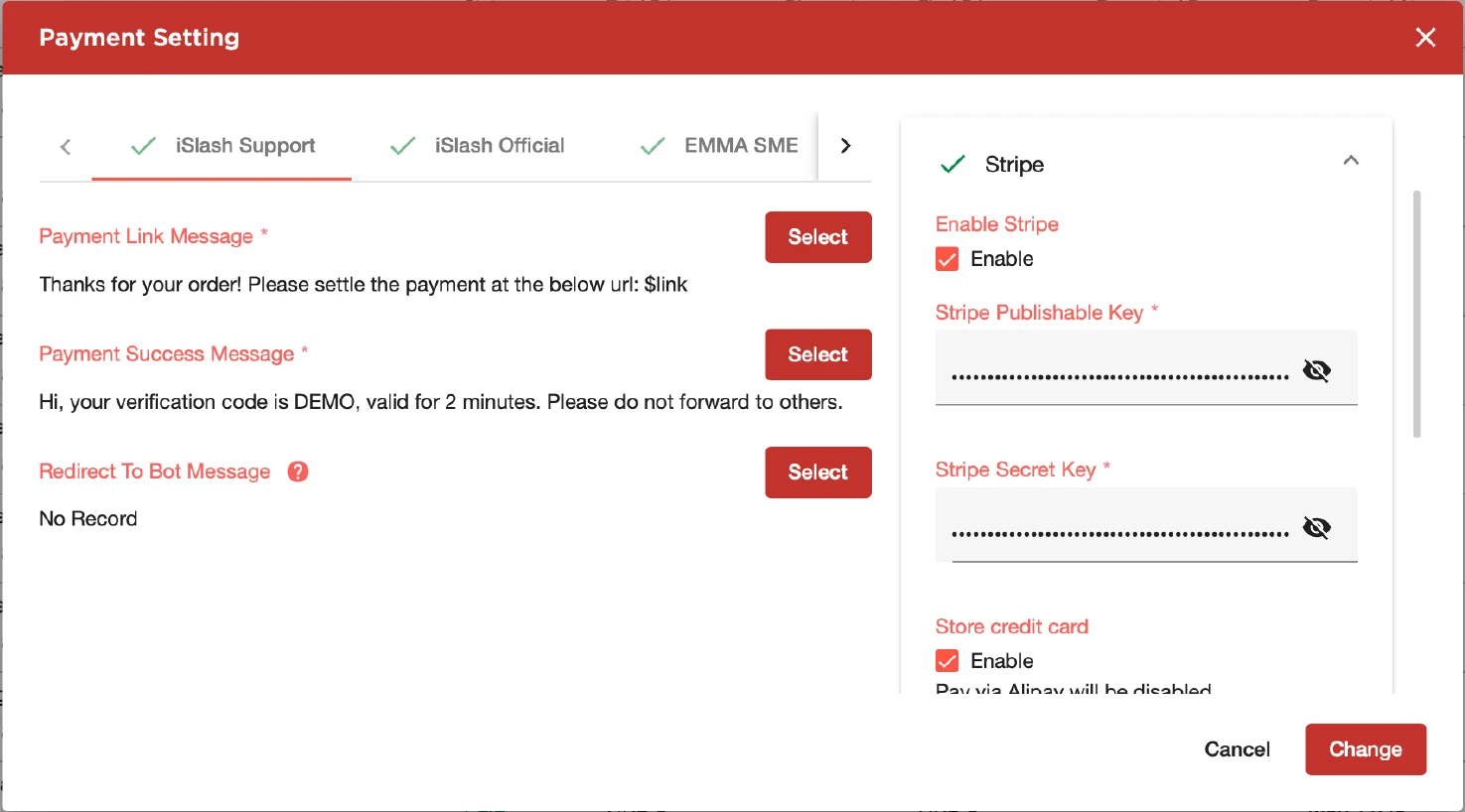
First,[ sign up](https://dashboard.stripe.com/login) your Stripe account, follow the instruction in website to upload the corresponding document. You can link up the Stripe account to your bank accounts afterwards. Then, navigate to "Developer" and select [Stripe API Keys](https://docs.stripe.com/api), and create secret key in Standard keys section.
Next, follow the steps below :arrow\_down:
1. *Input Stripe key to iSlash system*
2. *Navigate to iSlash panel and select "Payment"*
3. *Click "Setting" button on the top right corner*
4. *Click the checkbox to enable Stripe.*
5. *Then, input publishable key and secret key in Stripe Panel and Enable Store Credit card option for Stripe.*
And you need to setup the payment link message and payment success message for WhatsApp or other channels.
*\*The payment URL will inject to the variable $link\**
Stripe
### 2. Connecting PayPal to iSlash
[Sign up](https://www.paypal.com/signin?country.x=HK\&locale.x=en_GB\&langTgl=en) the PayPal account and select the Business account / Individual Account.
For integrating with **PayPal Business**, you need to visit , select **Live** and logging in by your PayPal Account. Next, create app and then input the name with selecting App Type as Merchant.[ Click here to read full article](https://www.soldeazy.com/support/article.php?id=880\&oid=22).
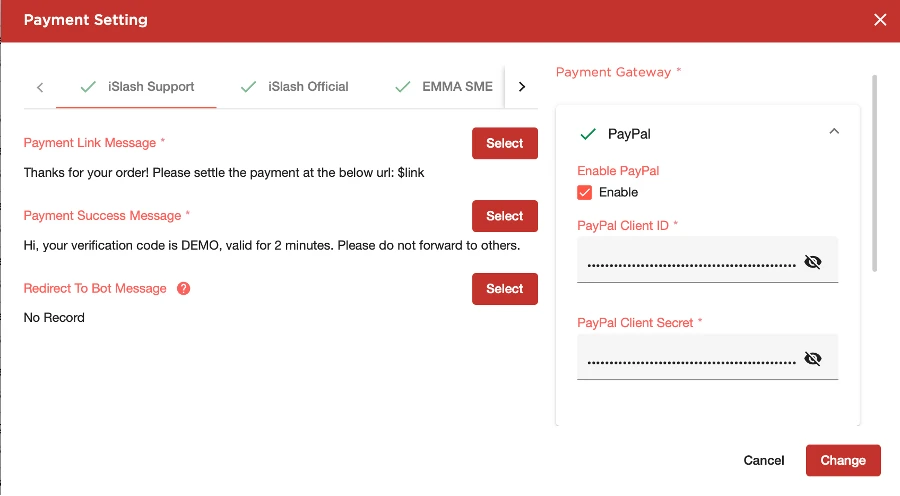
You will get the ClientID and Secret in PayPal. Follow the steps below and connecting PayPal to iSlash :arrow\_down:
1. *Go to iSlash panel → Payment*
2. *Click the setting*
3. *Enable the Paypal and input the Paypal client ID and Client secret*
Paypal
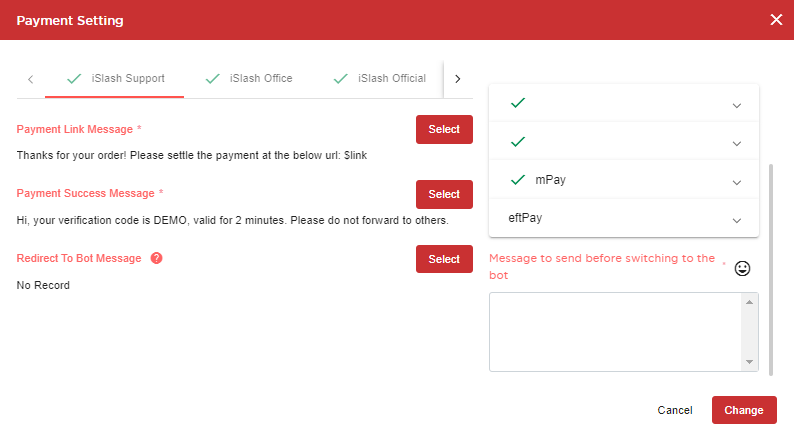
### 3. mPay & eftPay
mPay and eftPay supports most of the local payment method in Hong Kong. FPS, Octopus, Payme, AliPay, WeChat Pay etc.
Visit [mPay website](https://www.mpay.com.hk/mpay-frontend-web/index.jsp) / [eftPay](https://www.eftpay.com.hk/en/home/) to create your account.
## Send Payment Link to Your Customer
With iSlash In-App Payment, you can effortlessly send payment links directly to your customers, making transactions smoother than ever before. Whether you're a business owner looking to streamline your sales process or a shopper eager for a hassle-free checkout experience, this feature has got you covered! 💳💸
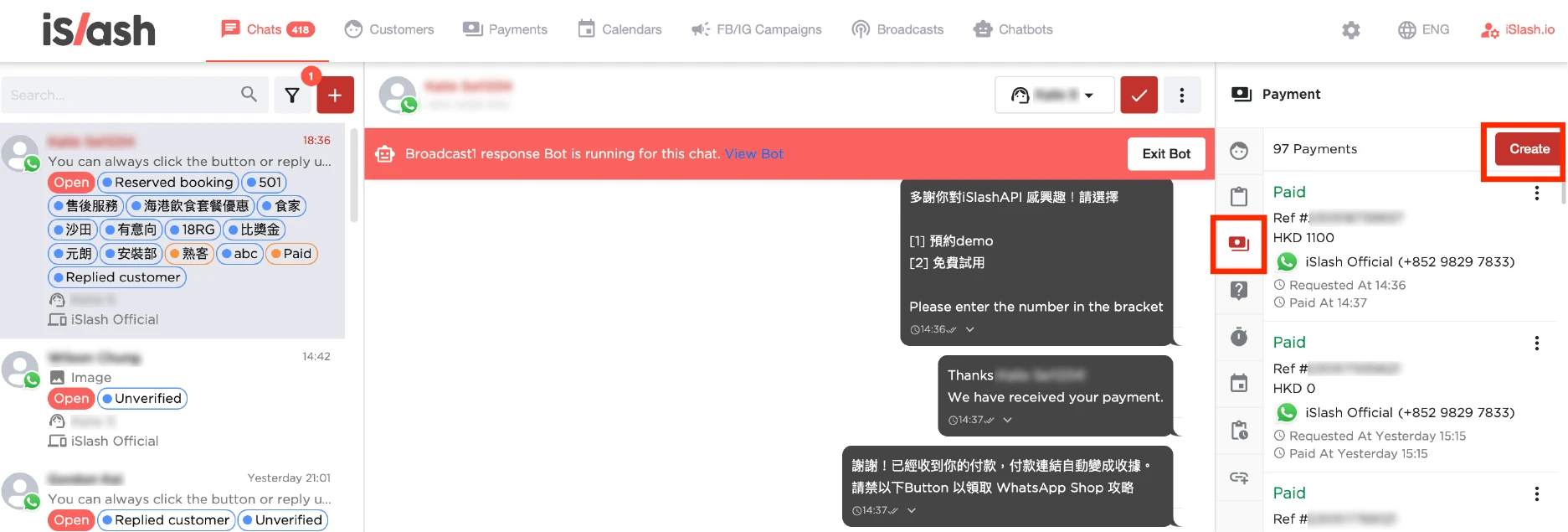
1. *Navigate to "Chats"* :arrow\_forward: *Select your customer* :arrow\_forward: *Click Payment icon*
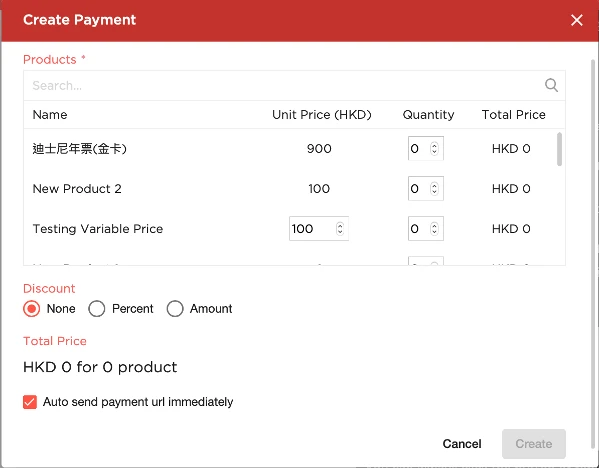
2. *A pop up window will be shown after clicking "Create" button on Payment panel.*
3. *Input ordered quantity and press "Create" button at the bottom of pop up window.*
4. *Once you press "Create" button, iSlash will send your message together with payment link to customer.*
You can check payment content by pressing "Info" button. The details will be displayed.
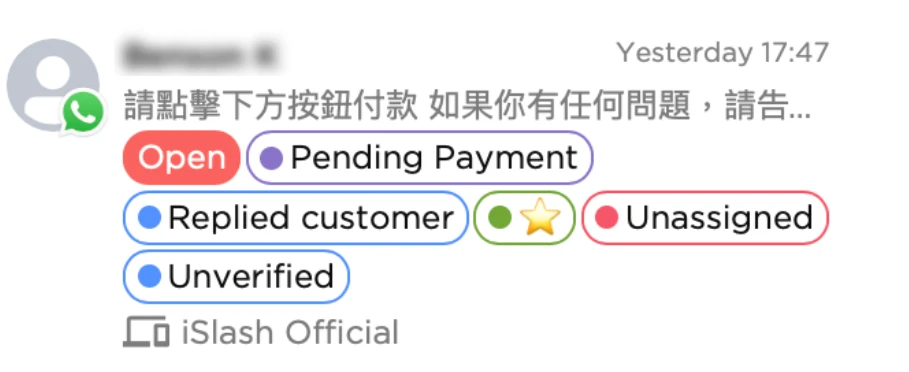
Once payment is created, a *“Pending Payment”* label will be attached to the chatroom automatically. If the customer completes the payment, a “Paid” label will be updated on the chatroom.
### Payment List
With iSlash In-App Payment, keeping track of your customer payment list has never been easier! Simply access the intuitive dashboard to monitor all your transactions in one convenient location. Whether you're reconciling payments or analyzing sales trends, this feature empowers you to stay organized and informed every step of the way. 💼💰